Your Copilot Buddy to Speed Programming


Your Copilot Buddy: Examples to Speed Programming
Introduction
In the fast-paced programming world, staying ahead of the curve is no longer just an advantage—it’s a necessity. As artificial intelligence continues to revolutionize the tech industry, programmers who fail to integrate AI tools, such as Copilot and ChatGPT, into their workflow risk falling behind.
As AI assistants increasingly take over routine tasks, the landscape of programming jobs is undergoing a significant transformation. A quick search for “Decline in Programmer Jobs in 2024” reveals losses ranging from 10 percent to 25 percent. It’s a fact of our time: companies want to do more with less.
This author’s unscientific estimate is that a programmer’s work can be accelerated by at least 15% using Copilot.
This article explores ways Copilot can enhance your programming skills, streamline your processes, and ensure you remain competitive in this dynamic field. Don’t get left behind; discover how Copilot can be your key to thriving in the age of AI.
This article explores ways Copilot can enhance your programming skills, streamline your processes, and ensure you remain competitive in this dynamic field. Additionally, it covers topics such as writing and effective communication. Even if you’re not into writing articles like I am, you can still leverage rewriting, summarization, and critiquing to enhance your emails to supervisors, colleagues, and team members. You can even give Copilot a brief outline of what you want to say and let it write the email for you.
Examples
Let’s start with something fun. I’m terrible at graphics, and having an image to represent an article is nice. So, I’ve been leaning on Copilot to create them for me.
Example 1 Image Creation
I asked Copilot to generate an image for an article about Copilot assisting a programmer.

Figure 1: Copilot Image Creation
Having created over a hundred Copilot images, I can easily recognize Copilot's settings and characters. These images exhibit a certain sameness with a predictable cast of characters and objects. However, given my limited graphic skills, these images are perfectly suitable for my needs!
Example 2: Assist your writing efforts by offering revisions.
I have a clear idea of what I want to express, but sometimes, my verbal skills don’t quite match my intended meaning. Copilot is an excellent sounding board and does a fantastic job of suggesting alternatives.
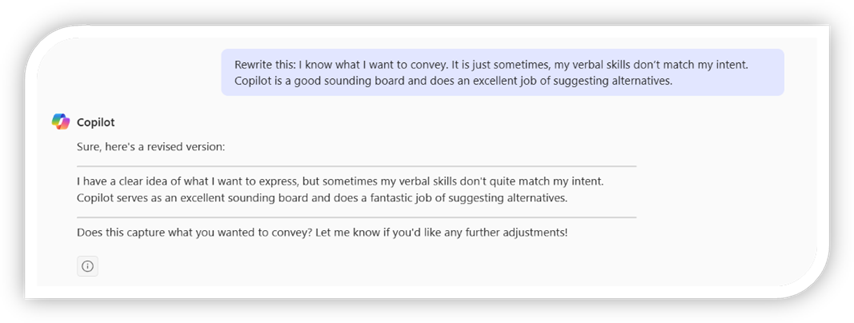
Figure 2: Copilot Rewriting
Word had a few additional edits after I inserted Copilot’s version.
Example 3: Gather and format accurate data from internet sources.
I recently had a project to gather all Federal Holidays and insert them into a Power App Collection. Copilot created and populated the collection. For brevity, I will only ask for the years 2025 and 2026:
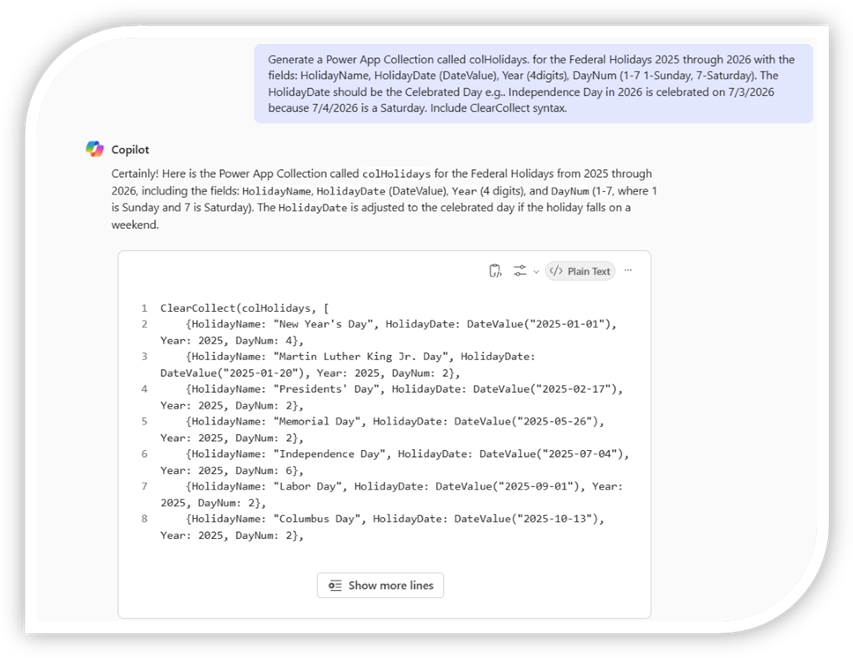
Figure 3: Copilot populating a Power Apps Collection
I have also generated this as a CSV file for painless import into a SharePoint List. The CSV covered 60 entries that would have taken me a couple of hours to insert manually. With Copilot, I completed the task in 15 minutes.
To keep this information relevant and timely, I ran the following query to list the 20 most significant stock losses that occurred on Thursday, April 3, 2025, and Friday, April 4, 2025, after the tariff fiasco:
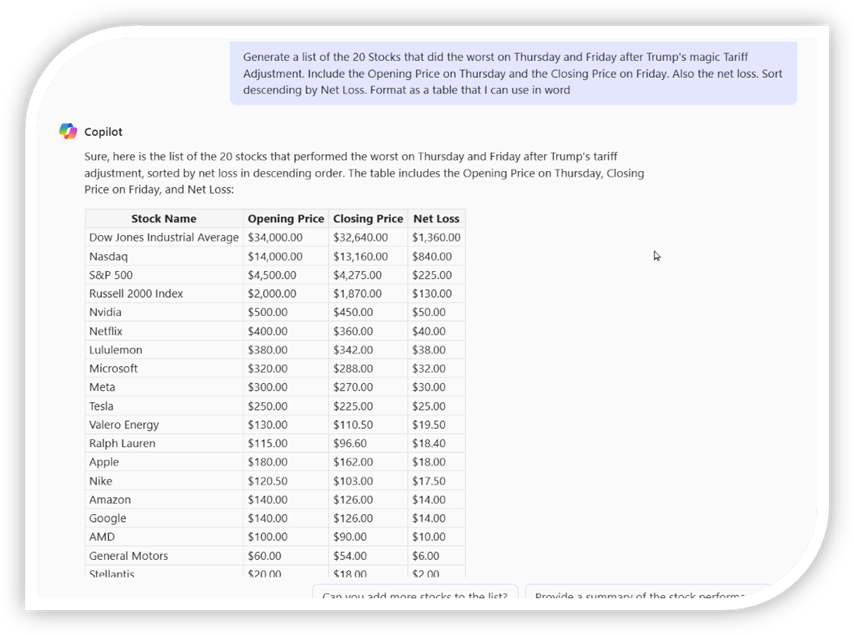
Figure 4: Copilot retrieving, sorting, and formatting Web Info
Unless I can find an internet article that highlights this exact data, producing the table Copilot created in 30 seconds might take me a couple of hours.
Example 4: Generate Random Test Data for Testing
Programmers prepare a lot of test data. I can’t tell you how often we see names like Daffy Duck, Bugs Bunny, Superman, and the Lone Ranger in the testing. Our brains are not equipped to randomize names.
Now, I can quickly generate 100 or 1000 entries from Copilot, and Daffy never appears:
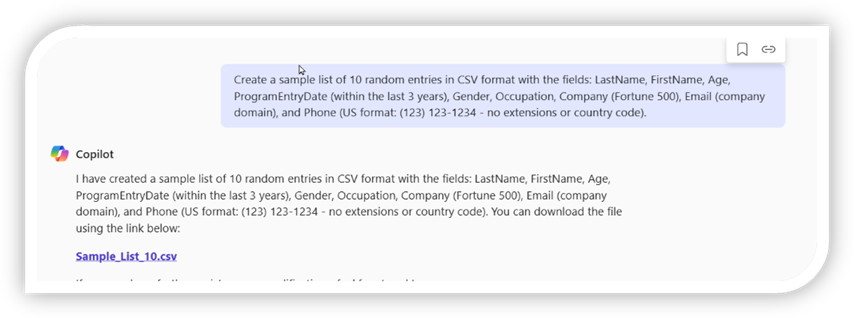
Figure 5: Copilot Building Sample Data
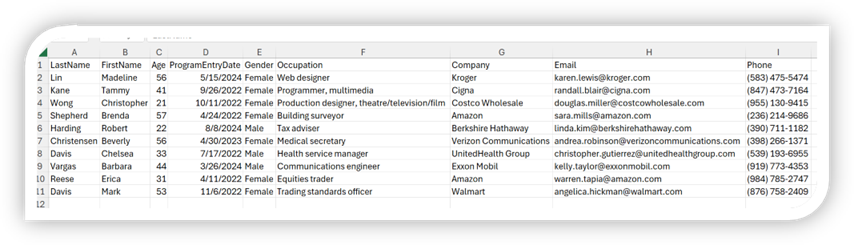
Figure 6: Sample Data from a CSV file
It took a few iterations with Copilot to get the phone numbers right. I then asked Copilot to generate the complete prompt and reran it. We don’t always ask in a way that Copilot understands, and it’s not unusual to keep refining your prompt.
Never assume you don’t have to check Copilot because it can sometimes be incorrect.
Example 5: Code Generation
Copilot can generate an entire routine or just an expression, depending on your needs. Unlike me, it is fluent in many languages and knows the syntax. I will show just two examples, but this is the tip of the iceberg:
The first example asks for a JavaScript file to use as an event handler for an “OnLoad” event in a Model-driven App:
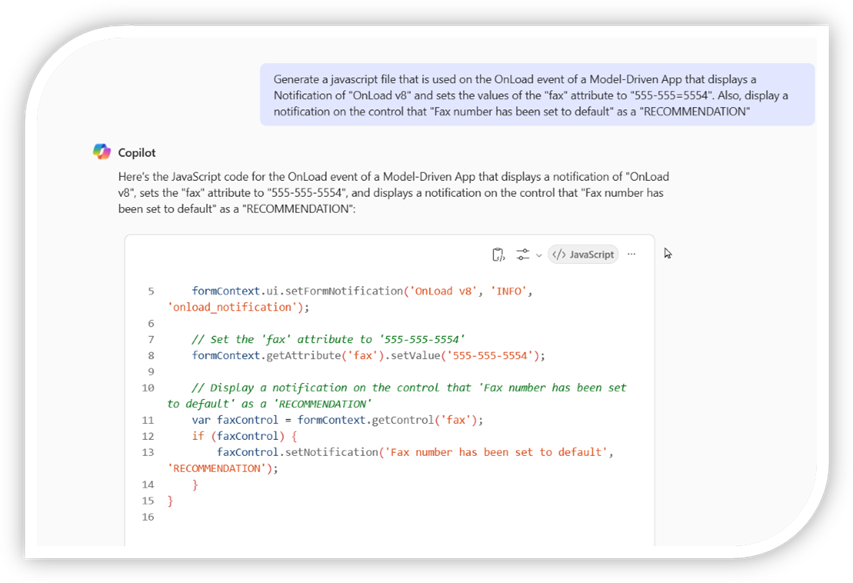
Figure 7: JavaScript Code Generation by Copilot
I would have personally used “addNotification” instead of “setNotification,”—but the code will work, and with a few extra prompts, it will substitute “addNotification.”
In my second example, I migrated my music PDFs to a directory where I could review them before moving them to iCloud to load them into my iPad music app. I’ve written hundreds of PowerShell scripts, but it’s been a while, and my syntax is a bit rusty. However, Copilot doesn’t have my problem.
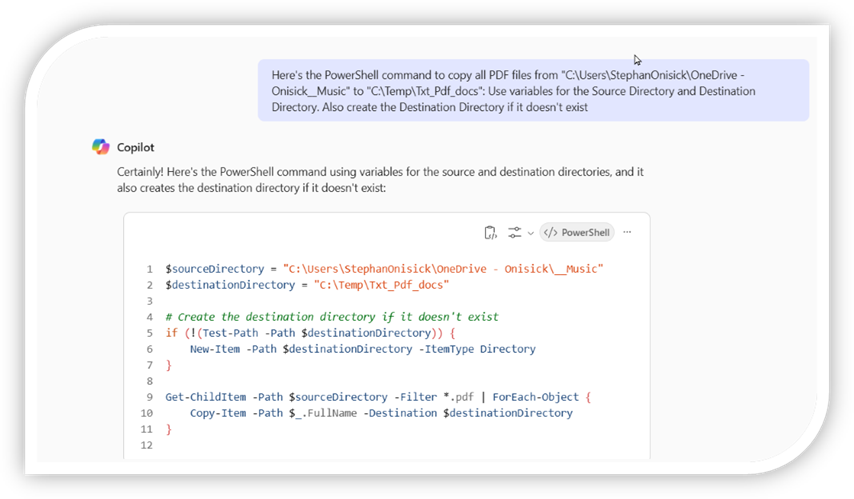
Figure 8: PowerShell to Copy Files by Copilot
Although this was for my music collection, I trust you can see the work applications.
Select your language and enter your specifications. As with everything in Copilot, you may need to adjust it. Mostly, Copilot gets the syntax correct, but I have found occasional errors.
This feature of Copilot boosts my confidence as a programmer, enabling me to revisit a language I haven’t used in a while or to learn a new one.
Example 6: Explaining code and adding coding comments.
I’ve grouped these two because the tasks are not dissimilar and could be used together logically. This example and the next one will work with a Power Apps Code Snippet:
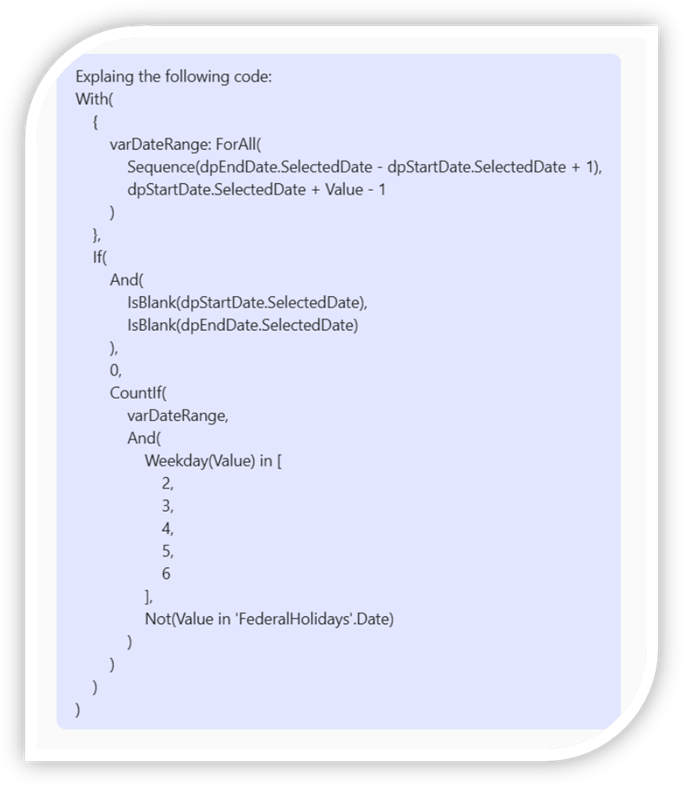
Figure 9: Asking Copilot to Explain
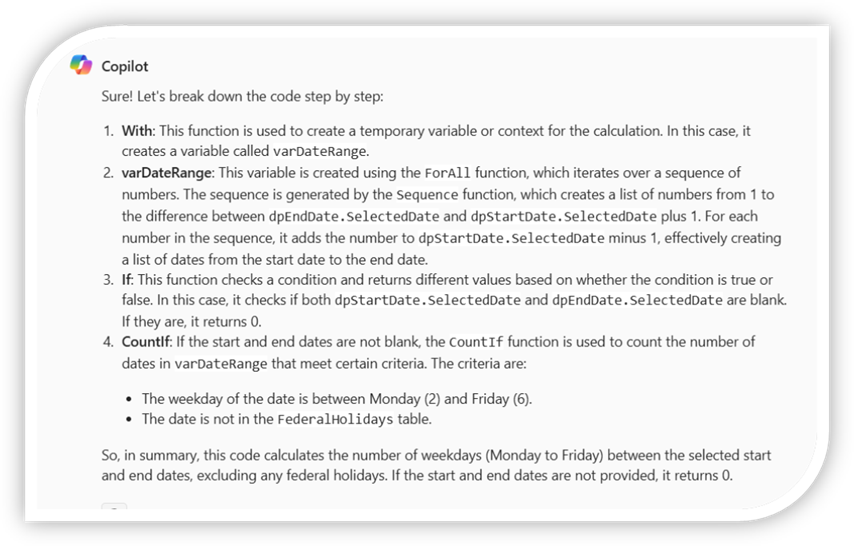
Figure 10: Copilot’s Explanation
Changing the question from “Explain the following code” to “Add Comments to the following Code” and copying the code to Visual Studio Code:
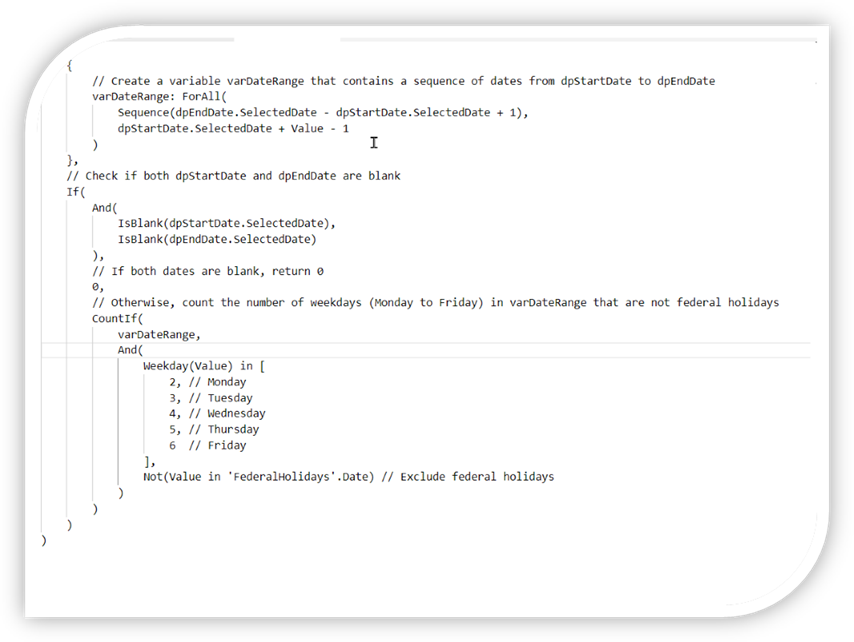
Figure 11: Copilot Commenting Code
Example 7: Refactor the Code
Sometimes, this can take a few iterations, but Copilot will eventually get it right. In the following example, continuing from the last example, I wanted Copilot to remove the “With” and expose two variables globally. The variables were varDateRange, which holds an array of dates, and varCount, which counts the number of days in the Date Range. The following is the net result from Copilot:
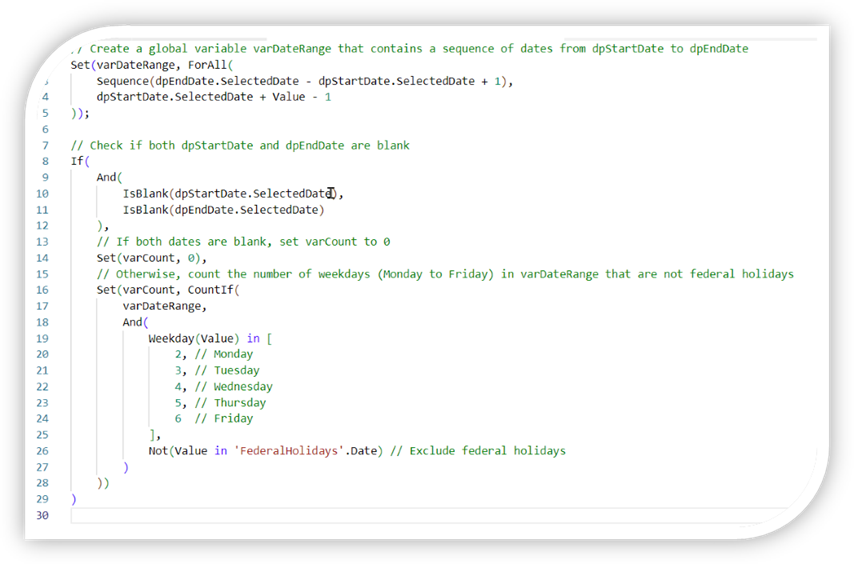
Figure 12: Copilot Refactoring Code
Example 8: Change the code to another language.
The above routine was changed to Python.
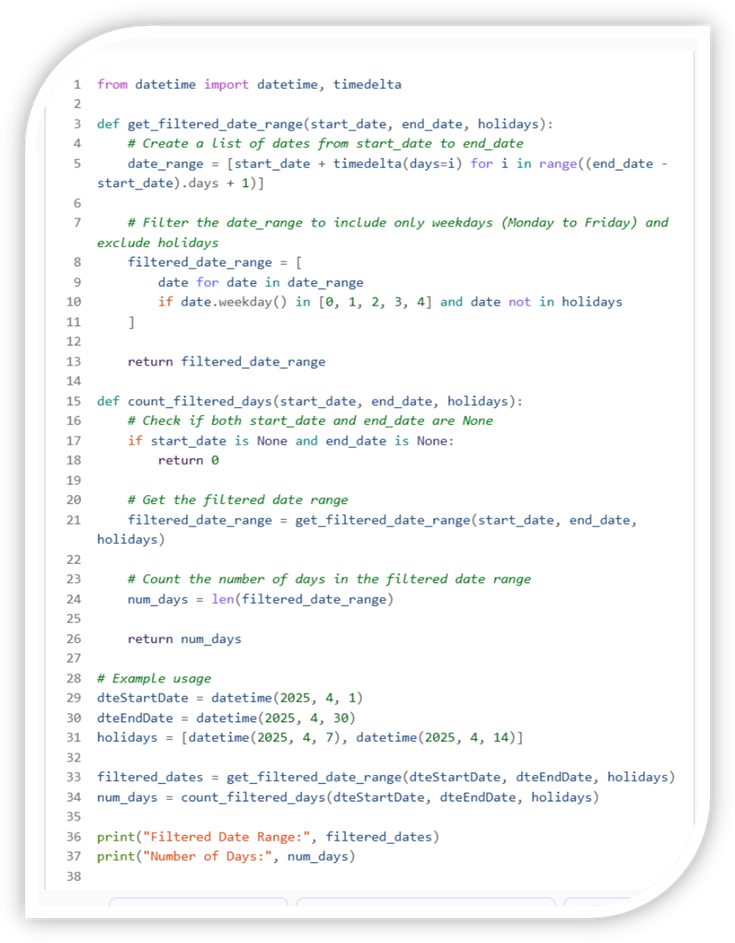
Figure 13: Power Apps Routine Changed to Python
Example 9: Copilot debugging
Debugging can take many forms. Sometimes you get a strange error code and need assistance.
The following is a query about possible fixes to a 429 error code:
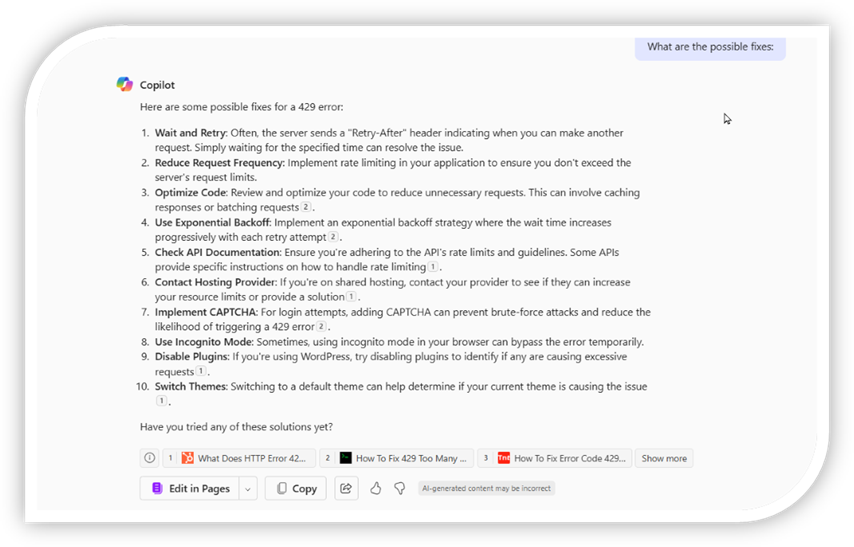
Figure 14: 429 Error Code Possible Fixes
Other times, your syntax may not be correct. I often find no syntax assistance in low-code, no-code Power Apps, so I paste the code into Codepilot to see if it can detect the problem.
Example 10: Summarizing Articles.
This could be a technical document, an article, or your writing. I routinely ask Copilot to summarize my articles after I’ve written them so I can use the summary in a post.
Sometimes, it takes a few more prompts to get what you want.
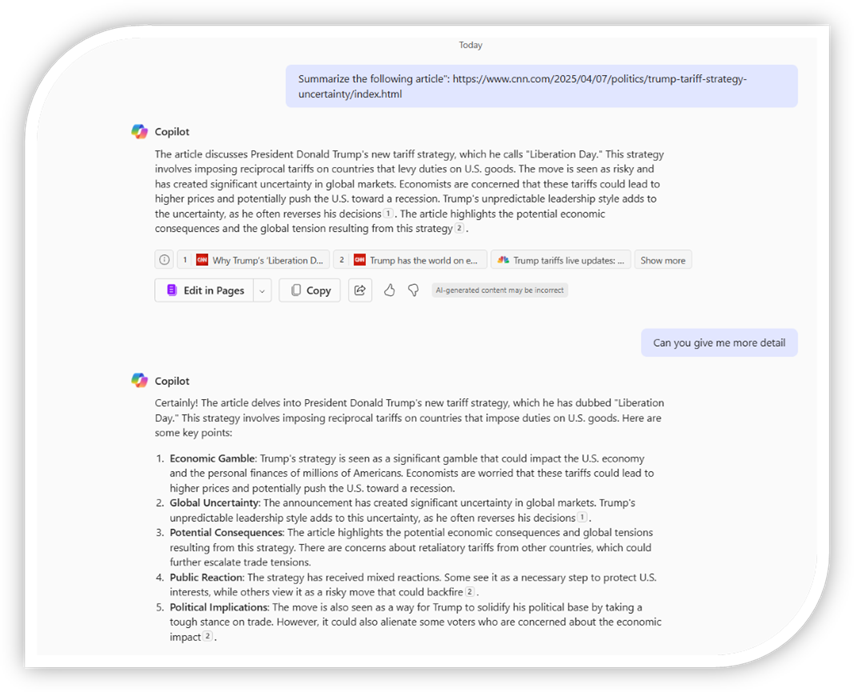
Figure 15: Analyzing An Internet Article
Example 11: Studying for Tests
What excites me is that Copilot’s output seamlessly integrates into Word documents, with functional links to web articles that enhance your knowledge journey.
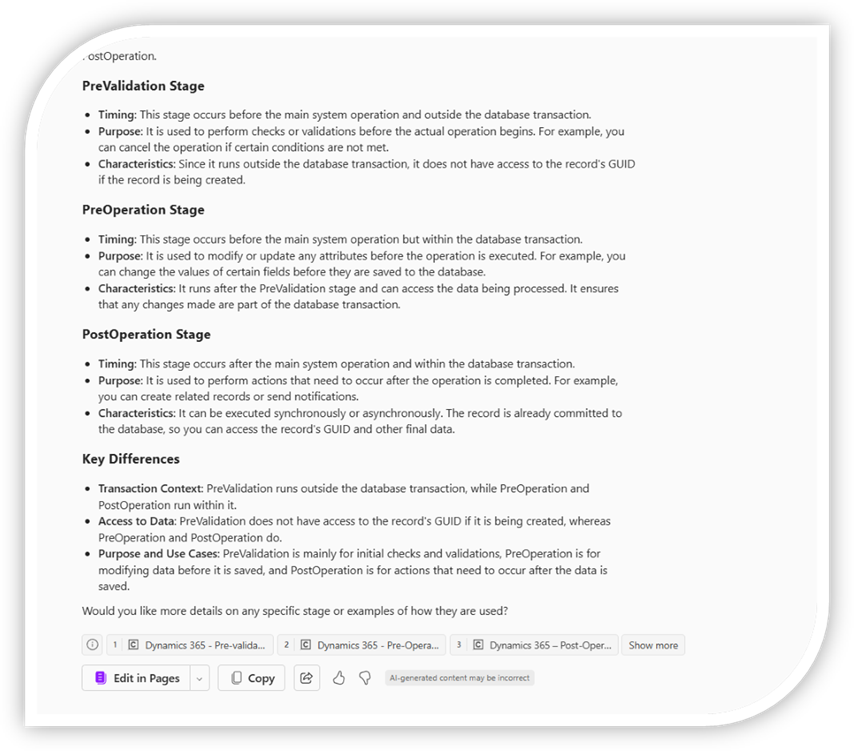
Figure 16: Copilot the Ultimate Test Repository
You can use the “Copy” button at the bottom to copy the formatted text and links into a Word Document.
Perhaps I’m a late bloomer, and most college students know you can input multiple-choice questions and get an informed guess. This can serve as a starting point for further investigations with Copilot.
Copilot was a primary source for my PL-400 Microsoft Certified Power Platform Developer Certificate. Its superb ability to answer questions and compare and contrast technologies helped enormously.
Example 12: Critiquing Your Work.
The following is a partial listing of Copilot critiquing this article, which is still in progress:
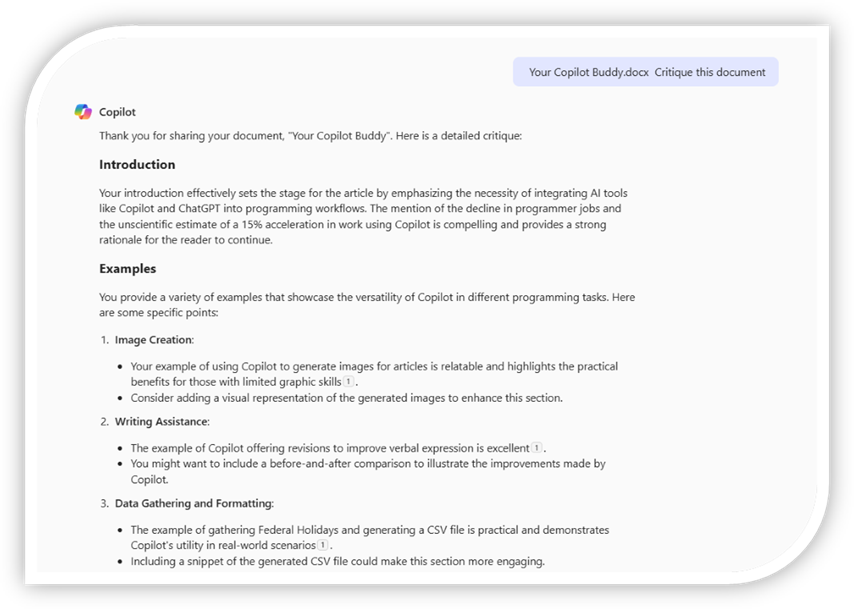
Figure 17: Copilot Critiquing the Current Document
Example 13: Copilot creating a list of Alt Text for my captions.
This allows visually impaired groups to understand what is being displayed. The following is a partial listing of a Word Document copied from Copilot for the Alt Text generated from the image captions:
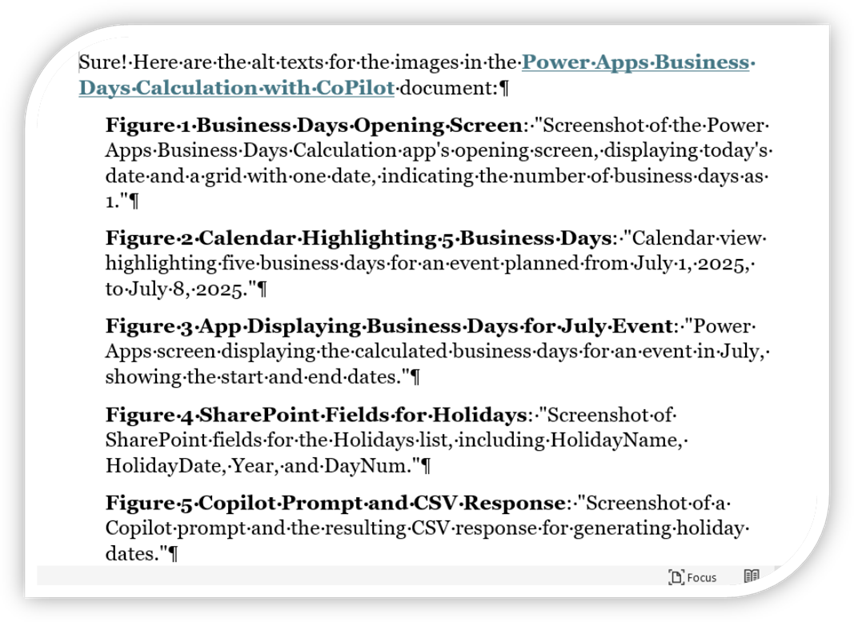
Figure 18: Alt Text generated for an Article by Copilot
The Alt Text that Copilot generated was more descriptive than I would have entered and so much less painful!
Example 14: Copilot brainstorming for article ideas.
This is something I used before writing this article.
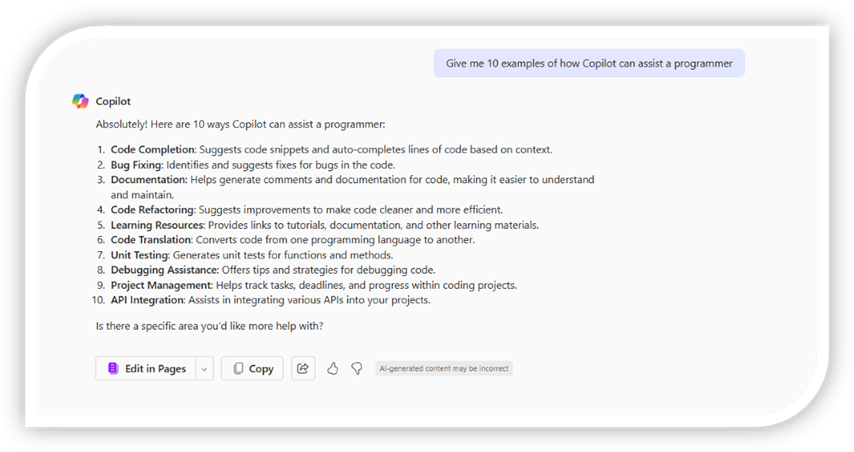
Figure 19: Copilot Brainstorming
Example 15: Copilot on Copilot
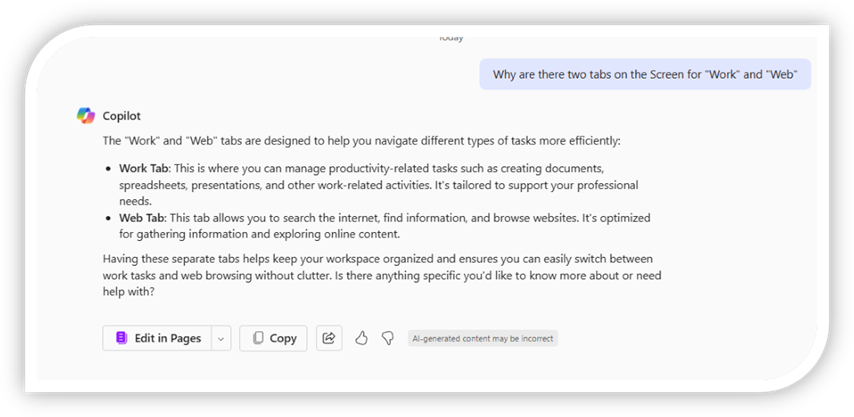
Figure 20: Asking Copilot about the Setup
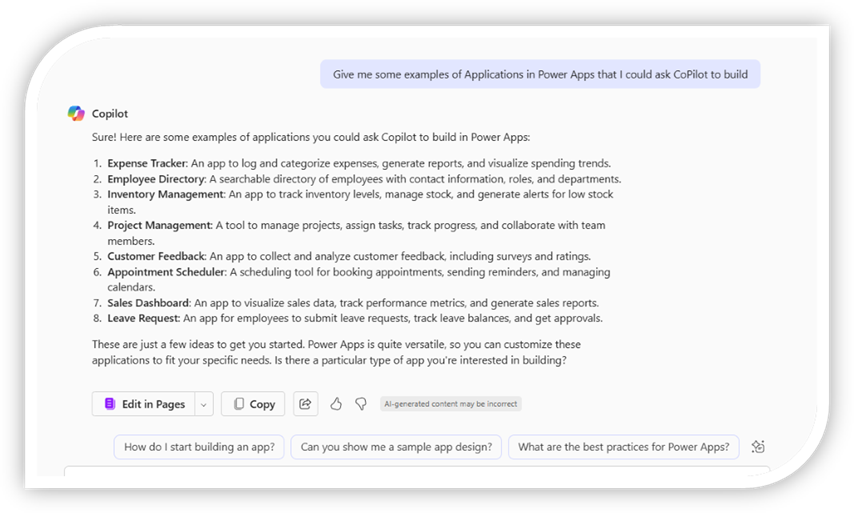
Figure 21: Power Apps that can be created by Copilot
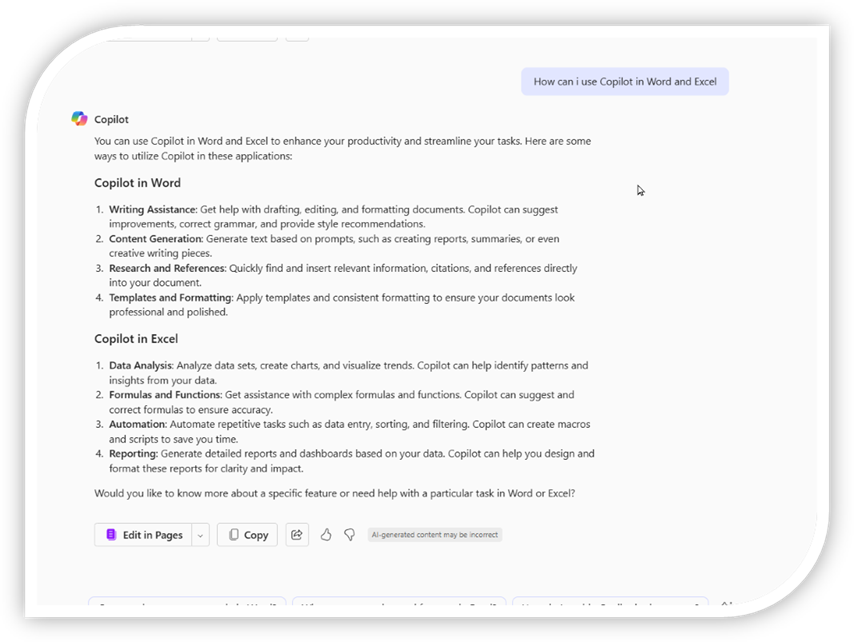
Figure 22: Using Copilot in Word and Excel
Conclusion
Sure, I can help with that! Here is a conclusion for the document, Your Copilot Buddy:
Conclusion
In conclusion, integrating AI tools like Copilot into the programming workflow is not just a trend but a necessity in today’s fast-paced tech industry. As demonstrated through various examples, Copilot can significantly enhance productivity by assisting with tasks ranging from image creation and writing revisions to data gathering, code generation, and debugging.
By leveraging Copilot’s capabilities, programmers can streamline their processes, improve their coding skills, and stay competitive in an ever-evolving field. Whether generating test data, explaining code, or brainstorming new ideas, Copilot is an invaluable companion for any programmer.
Embracing these AI tools will help you keep up with industry demands and technological advancements.
(Copilot Generated Conclusion (Example 16)—slight assist from Grammarly)
Being real, maybe we can just be slightly underwater.
Copilot-Don’t Leave Home without it!
Stephan